Long Calls #
The Long Calls view identifies your longest interactions, ranked by duration. Call length is often a leading indicator of underlying issues — whether process bottlenecks, complex problems that require escalation, difficult customer situations, or inefficient handling.
Why Track Call Length? #
Identifying process problems — a sudden increase in call duration for a particular call type or queue often signals that something has changed — a system is slower, a process step has been added, or there is confusion about how to handle a scenario. Long calls cluster around specific issues, making them easier to spot than reviewing individual calls.
Detecting handling inefficiency — while some long calls are unavoidable (complex issues, difficult customers), consistently long calls for routine interactions suggest that users may lack training, confidence, or the right tools to resolve issues quickly. Reviewing these calls reveals where coaching or process changes could improve efficiency.
Spotting escalation patterns — some of your longest calls are transfers, holds, or conferences while customers wait for another team or manager. Tracking these helps you understand where escalations are happening and whether they could be resolved at first contact instead.
Managing customer risk — very long calls often indicate frustrated or dissatisfied customers. Identifying these calls gives you the opportunity to follow up, resolve ongoing issues, or prevent churn before customers disengage completely.
Cost management — in a contact centre, longer talk time directly impacts costs and capacity. Understanding what drives your longest calls helps prioritize where to invest in improvements that will have the biggest impact on efficiency and cost.
Using the Long Calls View #
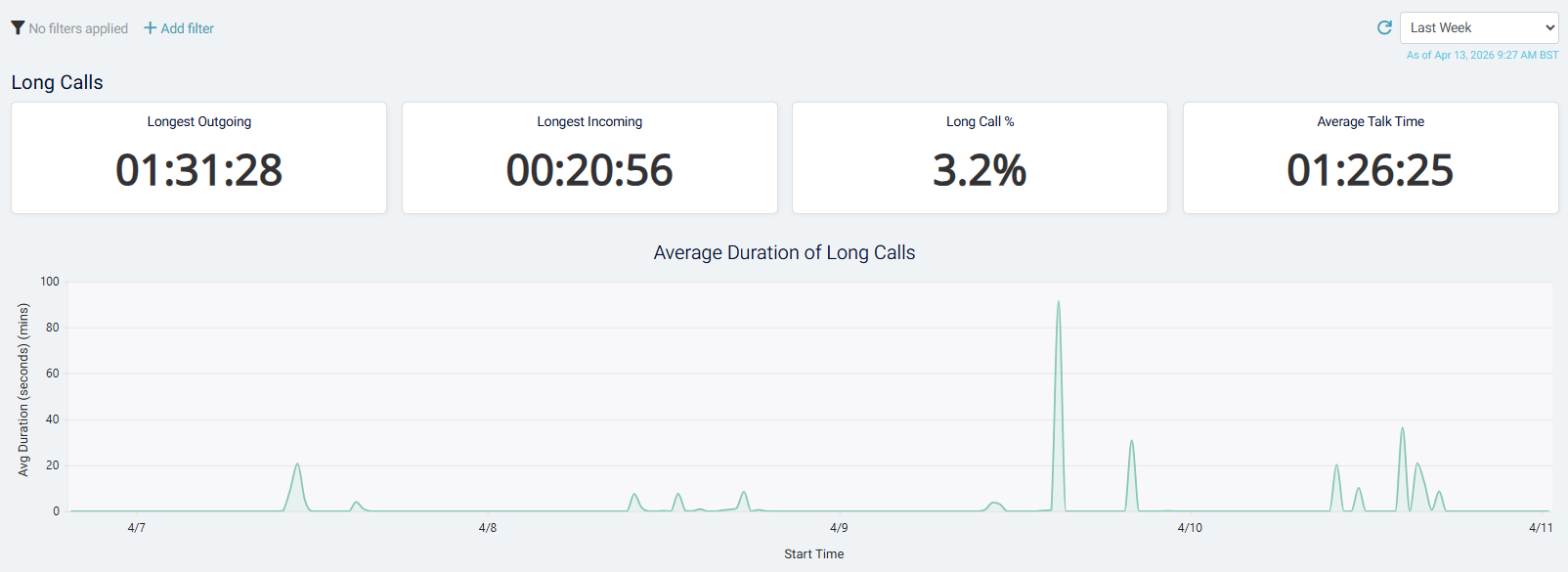
The view displays your calls ranked by duration, longest first. Each call shows:
- Duration — how long the call lasted
- User — who handled the call
- Customer — who called in
- Call type or queue — which routing path the call followed
Finding patterns — use the filters and date range controls to focus on specific time periods, queues, or users. For example:
- Filter to a specific queue to see if one team consistently has longer calls than others
- Look at a narrow date range to identify whether call length changed after a process update
- Compare user-to-user within the same queue to see whether some individuals handle calls more efficiently
Reviewing individual calls — click on any call to open the full conversation view and listen to the recording, review the transcription, and check sentiment and topic data. This helps you understand whether the length is justified by call complexity, or whether there are handling issues to address.
Following up on long calls — if you identify concerning patterns — such as a user consistently taking much longer than peers, or a sudden spike in duration for a particular issue — use the call details to prepare coaching feedback or to prioritize that issue for process improvement.
tip
Filter the Long Calls view to show only calls longer than a threshold you set (for example, calls over 10 minutes), then review those regularly. This helps you focus on outliers rather than getting lost in normal variation.