Call Recording #
If it has been enabled against your account and your user has the correct permission, ~.Dimensions.~ provides access to playback telephone calls, directly from reports.
Access to call recordings is available through 2 methods:
- Conversations -> A dedicated area for accessing call recordings and conversational intelligence data.
- Call Session -> By clicking through to the call session view from any call list report, you can access the recordings for that specific call.
Which Calls Are Recorded? #
Recording Playback from a Report #
To playback a call, simply run a call list report and use the a saved or quick filter to identify the specific call to replay.
To help find call recordings, there is a dedicated filter option to ensure that the report only includes calls for which there are recordings:
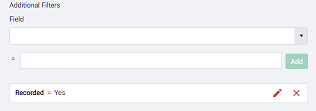
Once the call has been identified, access the Call Session view by clicking on the first field of the row (usually the call Start Time).
On the call timeline, select the segment of the call to playback. In the image below, the 'Demo User 1' segment has been selected. The details of the segment are then displayed below the timeline, including the recording section if a recording is available for that segment.

Depending on how the system configured, their maybe one or more recordings for a call. If the call has been transferred between different users, there may be a recording for each segment.
tip
If the recording section does not appear, either the call was not recorded or you do not have permission to play it back.
Clicking on a play icon to initiate the playback of the recording in the embedded media player:

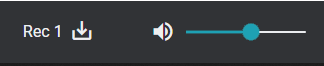
The media player provides controls for pause, resume, volume and mute. To download a recording, press the download icon to the left of the volume control:
note
If using ~.Dimensions.~ on a 3CX system, recordings are not available for playback until they have been archived. Ask you 3CX provider to set the 'Auto Archive' setting to 0 days to ensure recordings are archived immediately and available for playback as soon as the call has ended.
Playback / Transcription Permissions #
In order for users to be able to playback call recordings or view the transcription of a recording, they must first have been given permission to do so. When giving a user permission, a recording access scope must be selected. The scope assigned to a user controls which calls they are allowed to playback.
| Scope | Description |
|---|---|
| Own Calls1 | Allow the user to playback only calls which they have been involved with. |
| Primary Group | Allow the user to playback any call which has been tagged with their Primary Group. |
| Member Groups | Allow the user to playback any call which has been tagged with any group they are a member of. |
| All Calls | Allows the user to playback any call which has been recorded. |
For information on providing access for users to playback calls, refer to the user permissions section.
info
'Recording Playback & Scope' - Any user with permissions to playback their own calls will be able to playback any conference they have been involved in. This may include times before they joined or after they have left the conference call.
-
Users will be able to playback their own calls if any of the other scope options are selected. ↩︎