Transcription & Summary #
If transcription has been enabled on your account, you can view the transcription of calls along with a summary of the conversation. Transcription can be enabled on a user by user basis.
A summary of the conversation will be displayed on the 'Overview' tab of the conversation view. The summary will include a brief synopsis of the call and the general content.
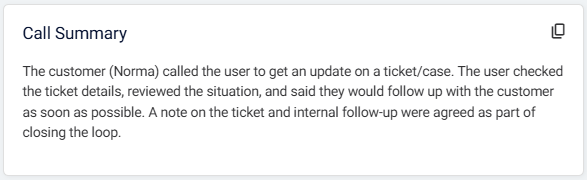
A copy of the summary can be copied to the clipboard by clicking on the copy icon in the top-right of the summary box.
info
Transcription and call summary can be enabled on selected users. If you would like to enable this feature, please speak to your reseller.
tip
Currently, transcription and summary creation is only created for external calls.
Timeline #
The transcription timeline will display above the recording playback interface. The timeline will display the 2 parties in the conversation and when they spoke.

tip
Hover the mouse over the timeline to view the transcription of what was said at that point in time.
Transcription #
A full transcription on the call is available on the 'Transcription' tab of the conversation view. The transcription will be time-stamped and will indicate which party said each part of the conversation.
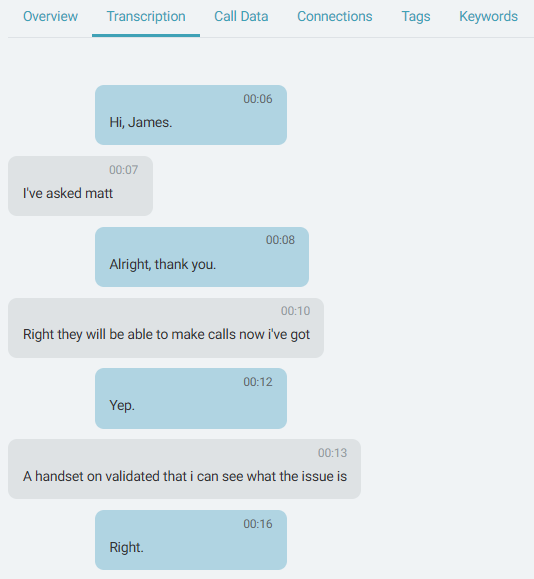
If you are playing back the recording of the call, the transcription will be highlighted in time with the recording. This allows you to easily follow along with the conversation as you listen to the recording.
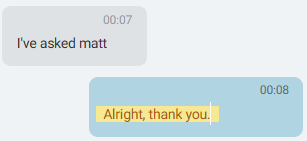
As the call progresses, the transcription will be added to the page in real-time. This allows you to view the transcription of the call as it happens. To stop the page scrolling with the playback, turn off 'Karaoke Mode' by using this toggle:

Custom Dictionary #
The accuracy of the transcription can be improved by adding custom words to the dictionary. This is particularly useful for uncommon words, names and industry-specific terminology.
When you notice a word has been transcribed incorrectly, you can add the correct word to the Custom Dictionary to improve the accuracy of future transcriptions.
Swap Speakers #
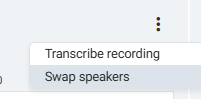
~.Dimensions.~ should automatically identify the parties in the conversation. If the parties have been mislabeled, the 'Swap Speakers' option can be used to update the transcription so the correct parties are referenced against each side of the call.