Conversations #
The 'Conversations' section of the portal provides a way to view the details of individual calls and their associated call segments. This can be useful for:
- Recording Playback - Playback recordings of calls directly from the portal, without the need to access the communications platform or a third party recording solution.
- Transcription & Summary - View the transcription of calls along with a summary of the call which includes key information such as the call duration, participants, and any keywords that were mentioned during the call.
- Conversational Intelligence - Analyzing 'Conversational Intelligence' data such as keywords/topics/sentiment
info
If you cannot see the 'Conversations' section in the portal, you may not have been given permission to playback recordings.
Using the Conversations Section #
The screenshot below shows the 3 areas of the 'Conversations' section which are used to access call data:
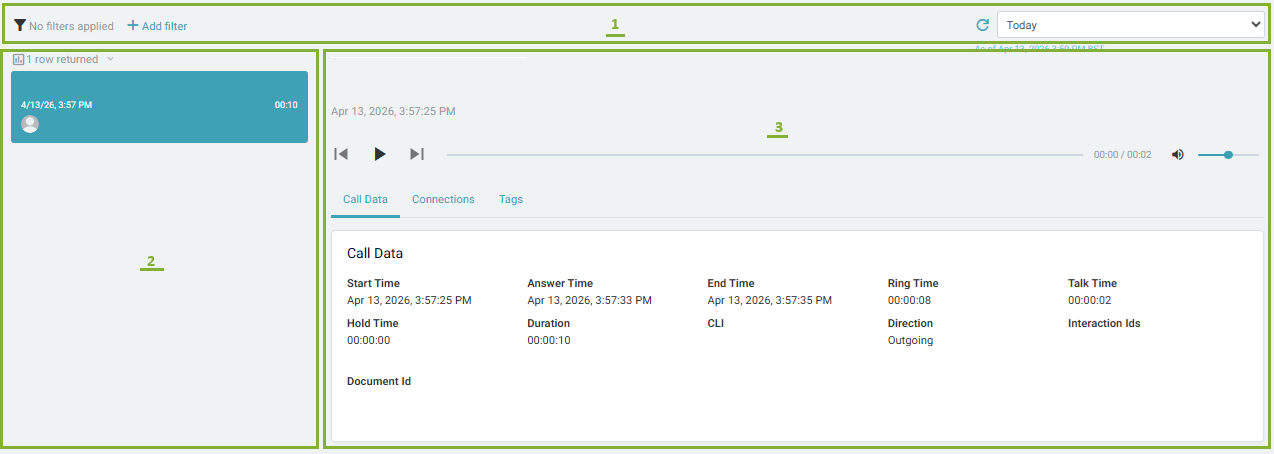
1. Filters #
To find the calls that you are interested in, you can filter the the conversation view on specific call parameters and a date/time period. Use the drop-down selector on the right to select the date/time range to search. The '+ Add Filter' button on the right can be used to select specific properties to search for such as Caller ID or User.
2. Call List #
Once you have provided the required filters, the call list will show the calls which match the criteria. The call list shows a summary of each call and can be sorted on any of the columns by clicking on the column header. To view more details about a specific call, click on the row to open the 'Conversation Session View'.
3. Conversation View #
The conversation view provides details of the call and if available, access to playback a recording of the call.