Keywords & Topics #
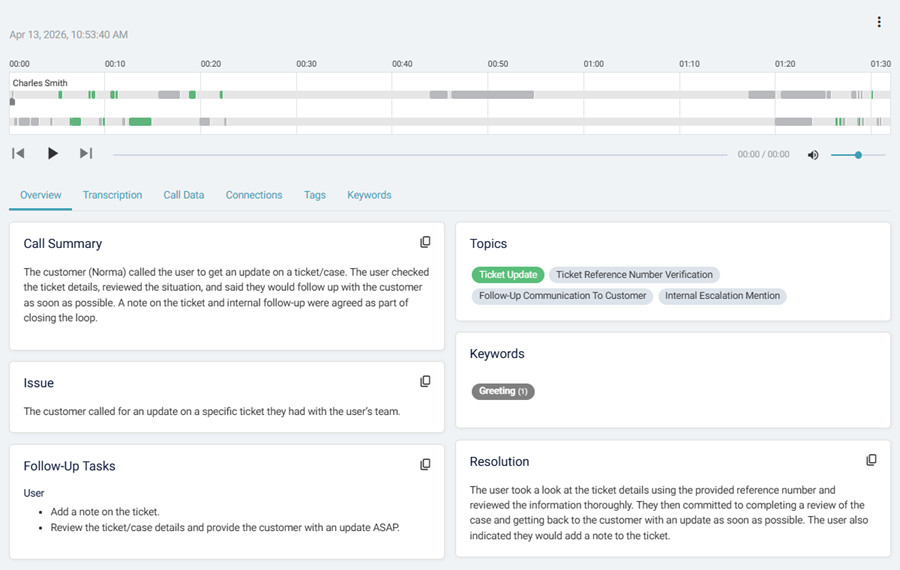
If the Conversational Intelligence features are enabled and configured, you can view the keywords, topics and sentiment data for each call within the 'Conversations' section of the portal. This data is displayed in the right-hand panel of the conversation view:
note
Keywords, Topics & Sentiment data is only available if you have the Conversational Intelligence features enabled and configured. If you cannot see this data, please check with your administrator to ensure you have the correct permissions and that the features are configured correctly.
Topics #
While analyzing the conversation, the system will attempt to identify the primary topic for the conversation in a 1 to 2 word phrase. This is designed to give a quick insight into the main topic of the conversation, allowing you to quickly understand what the call was about without needing to listen to the recording or read through the transcription.
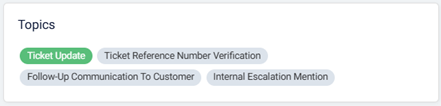
The topics are generated based on the content of the conversation and are designed to give a quick insight into the main topic of the conversation. Use the Topic Analysis view to look at the range of topics in your calls.
note
The secondary topics displayed are a temporary feature and will replaced with a Topic Category and Topic Category Description in a future release.
Keywords #
The keywords keywords feature provides a way to search for the presence of specific words or phrases in a conversation. This can be used for a variety of reasons, such as:
- Checking that users answer calls with the correct greeting
- Identifying when competitors are discussed
- Monitoring for specific phrases that may indicate a positive or negative customer experience (e.g. 'thank you', 'cancel my subscription')
- Identifying calls that may require follow-up (e.g. 'speak to a manager', 'cancel my subscription')
- Check that users are following processes correctly (e.g. 'I have read and understood the terms and conditions')
~.Dimensions.~ will search the transcription for any instances of the keywords that have been configured. Any matches are shown on the timeline with an arrow and on the 'Keywords' tab.

Configuration of which keywords to search for is done in the Settings area of the portal.
Sentiment #
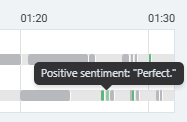
~.Dimensions.~ will attempt to determine the sentiment of the customer and user during the call. This is designed to give a quick insight into the overall sentiment of the conversation, allowing you to quickly understand how positive or negative the call was without needing to listen to the recording or read through the transcription.
Positive sentiment are shown on the timeline in green and negative sentiment is shown in red.
note
Customer and user sentiment is only determined from the content of the conversation, not the pitch or tone of voice.
Issue, Resolution & Follow-Up Tasks #
In addition to the 'Summary' call synopsis, if the Conversational Intelligence features are enabled and configured, you can also view any issues, resolutions or follow-up tasks that were identified during the call.
note
Summary and follow-up tasks are also available in the Post-Transcription Webhooks, allowing call data to be added to CRM systems or other third-party applications.